


Breaking Down the .claude Folder
The .claude folder is created by tools that integrate with Claude to store local state, to keep track of how the model behaves inside your project.
Image by Author
# Introduction
You open a project, run a Claude-powered tool, and suddenly, there is a new folder sitting in your directory named .claude. You did not create it. It was not there before. And if you are like most developers, your first instinct is to wonder if it is safe to delete.
The .claude folder is created by tools that integrate with Claude to store local state. It keeps track of how the model behaves inside your project. That includes configuration, cached data, task definitions, and sometimes context that helps the system stay consistent across runs.
At first glance, it looks small and easy to ignore. But once you start working with agent-based workflows or repeated tasks, this folder becomes part of how things actually function. Remove it, and you are not just cleaning up files — you are resetting how Claude interacts with your project.
What makes it confusing is that nothing explicitly explains it when it appears. There is no prompt saying "this is where your artificial intelligence system stores its working state." It just shows up and starts doing its job quietly in the background. Understanding what is in this folder and how it works can help you avoid accidentally breaking things, and, more importantly, it helps you use these tools more effectively.
Let's examine what is actually inside the .claude folder and how it affects your workflow.
# Understanding the .claude Folder
The .claude folder is a hidden directory that acts as a local workspace for tools built around Claude. The dot at the beginning simply means it is hidden by default, similar to folders like .git or .vscode.
At its core, this folder exists to store state. When you interact with Claude through a command line interface (CLI) tool, an agent framework, or a local integration, the system needs a place to keep track of what is happening inside your project. That includes configuration settings, intermediate data, and sometimes memory that carries across sessions.
Without this folder, every interaction would start from scratch. It helps to think of .claude as the layer that connects your project to the model. The model itself does not remember anything between runs unless you explicitly provide context. This folder fills that gap by storing the pieces needed to make interactions feel consistent and repeatable.
# Establishing Why the Folder Is Created
The .claude folder is usually created automatically the moment you start using a Claude-powered tool within a project. This can happen in a few common scenarios. You might be running a Claude CLI tool, experimenting with an agent workflow, or using a development environment that integrates Claude into your project. As soon as the system needs to persist something locally, the folder is created.
The reason it exists comes down to persistence and control.
- First, it allows the system to store project-specific context. Instead of treating every request as isolated, Claude can reference previous runs, saved instructions, or structured data tied to your project.
- Second, it helps maintain consistent behavior. If you configure how the model should respond, what tools it can use, or how tasks are structured, those settings need to live somewhere. The
.claudefolder becomes that source of truth. - Third, it supports more advanced workflows. When you move beyond simple prompts into multi-step tasks or agents that execute sequences of actions, the system needs a way to track progress. That tracking often happens inside this folder.
# Analyzing Common Files and Structure
Once you open the .claude folder, the structure usually starts to make more sense. While it can vary depending on the tool you are using, most setups follow a similar pattern.
config.json: This is typically the starting point. The config file stores how Claude should behave within your project. That includes model preferences, API-related settings, and sometimes instructions that guide responses or workflows. If something feels off about how the system is responding, this is often the first place to check.memory/orcontext/: These folders store pieces of information that persist across interactions. Depending on the setup, this could be conversation history, embeddings, or structured context that the system can reuse. This is what gives the impression that Claude "remembers" things between runs. It is not memory in the human sense, but stored context that gets reloaded when needed.agents/ortasks/: If you are working with agent-based workflows, this folder becomes important. It contains definitions for tasks, instructions for multi-step processes, and sometimes the logic that guides how different steps are executed. Instead of a single prompt, you are dealing with structured workflows that can run across multiple stages.logs/: This is the debugging layer. The logs folder keeps track of what happened during execution. Requests, responses, errors, and intermediate steps can all be recorded here depending on the tool.cache/: This folder is all about speed. It stores temporary data so the system does not have to recompute everything from scratch every time. That might include cached responses, intermediate results, or processed data. It does not change how the system behaves, but it makes it faster and more efficient.
# Explaining How the Folder Operates
Understanding the structure is useful, but the real value comes from seeing how everything fits together during execution. The flow is fairly straightforward once you break it down.
A user runs a task. This could be a simple query, a command, or a multi-step agent workflow. Then the system first checks the configuration. It reads from config.json to understand how it should behave — which model to use, what constraints exist, and how the task should be handled.
Next, it loads any available context. This could come from the memory or context folder. If previous interactions or stored data are relevant, they are pulled in at this stage. Then the task is executed. If it is a simple request, the model generates a response. If it is an agent workflow, the system may go through multiple steps, calling tools, processing data, and making decisions along the way.
As this happens, the system writes back to the .claude folder. Logs are updated, new context may be stored, and cache entries can be created to speed up future runs. What you end up with is a loop. Each interaction reads from the folder, performs work, and writes back into it.
This is how the state is maintained. Instead of every request being isolated, the .claude folder allows the system to build continuity. It keeps track of what has happened, what matters, and how future tasks should behave.
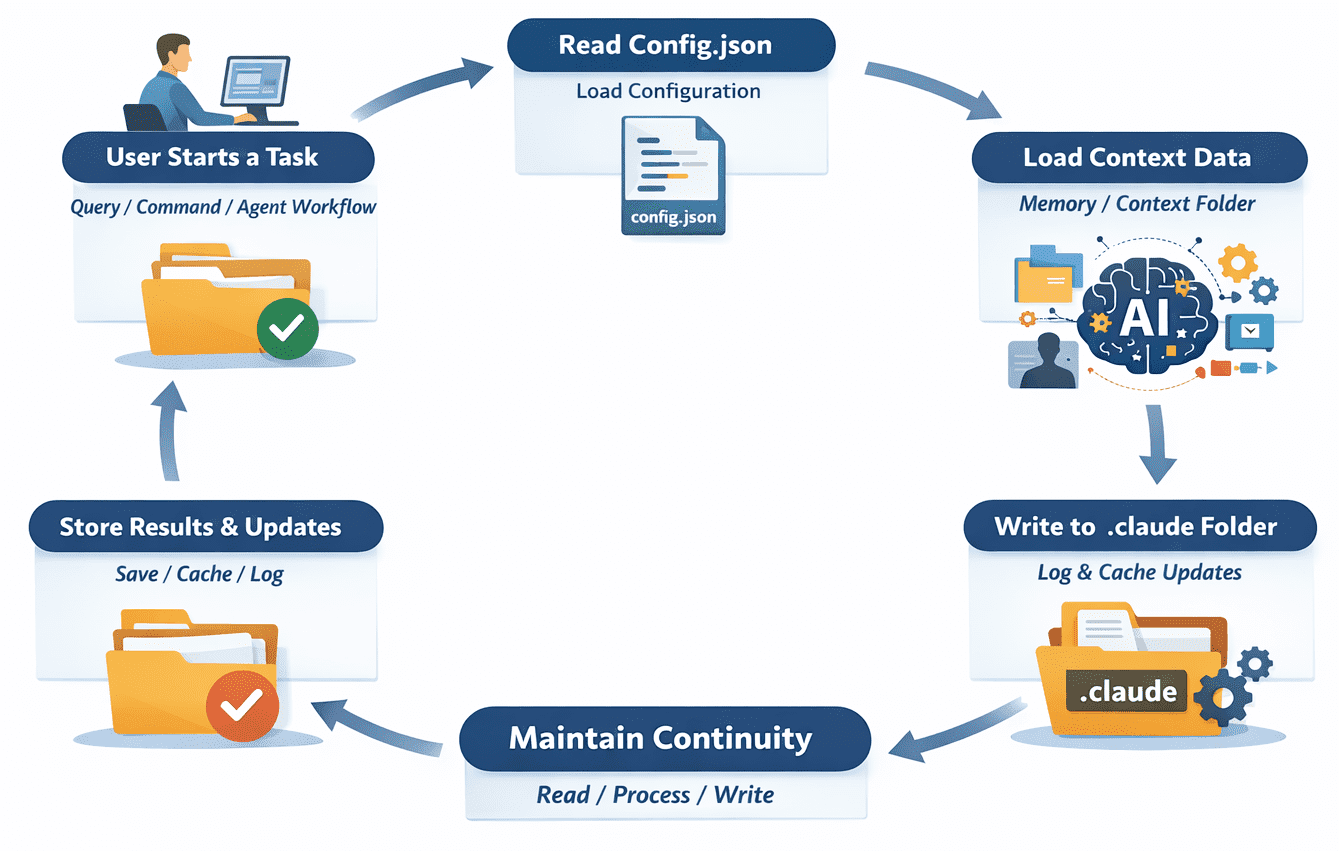
The operational flow of the .claude folder | Image by Author
To make this more concrete, let's look at a simple example of what a .claude folder might look like in a real project:
.claude/
config.json
memory/
agents/
logs/
cache/
Now imagine you run a command like this:
claude run "Summarize all user feedback from the last 7 days"
Here is what happens behind the scenes:
First, the system reads from config.json. This tells it which model to use, how responses should be structured, and whether any specific tools or constraints are enabled. Next, it checks the memory/ or context/ folder. If there is stored data related to past feedback summaries or previous runs, that context may be loaded to guide the response.
If the task is part of a defined workflow, the system may also look into the agents/ folder. For example, it might find a predefined sequence like:
- Fetch feedback data
- Filter by date
- Summarize results
Instead of doing everything in one step, it follows that structure. As the task runs, the system writes to the logs/ folder. This can include what steps were executed, any errors encountered, and the final output generated. At the same time, the cache/ folder may be updated. If certain data or intermediate results are likely to be reused, they are stored here to make future runs faster.
By the time the command finishes, multiple parts of the .claude folder have been read from and written to. The system has not just produced an output. It has updated its working state, and that is the key idea: each run builds on top of what is already there.
# Evaluating the Deletion of the .claude Folder
Yes, you can delete the .claude folder. Nothing will break permanently. But there are consequences. When you remove it, you are clearing everything the system has stored locally. That includes configuration settings, cached data, and any context that has been built up over time.
The most noticeable impact is the loss of memory. Any context that helped Claude behave consistently across runs will be gone. The next time you run a task, it will feel like starting from scratch. You may also lose custom configurations. If you have adjusted how the model behaves or set up specific workflows, those settings will disappear unless they are defined elsewhere. Cached data is another piece. Without it, the system may take longer to run tasks because it has to recompute everything again.
That said, there are times when deleting the folder is actually useful. If something is not working as expected, clearing the .claude folder can act as a reset. It removes corrupted state, outdated context, or misconfigurations that might be causing issues. It is also safe to delete when you want a clean start for a project. The important thing is to understand what you are removing. It is not just a folder — it is the working memory of your Claude setup.
# Implementing Best Practices for Management
Once you understand what the .claude folder does, the next step is managing it properly. Most issues developers run into are not because the folder exists, but because it is handled carelessly.
One of the first things to do is add it to your .gitignore file. In most cases, this folder contains local state that should not be committed. Things like cached data, logs, and temporary context are specific to your environment and can create noise or conflicts in a shared repository.
There are a few rare cases where committing parts of it might make sense. For example, if your team relies on shared agent definitions or structured workflows stored inside the folder, you might want to version those specific files. Even then, it is better to extract them into a separate, cleaner structure rather than committing the entire folder.
Security is another important consideration. Depending on how your setup works, the .claude folder may contain sensitive information. Logs can include user inputs or system outputs. Config files might reference API-related settings. Accidentally committing these to a public repository is an easy way to expose data you did not intend to share.
Keeping the folder clean also helps. Over time, cache files and logs can grow, especially in active projects. Periodically clearing unnecessary files can prevent clutter and reduce the chances of running into stale or conflicting state.
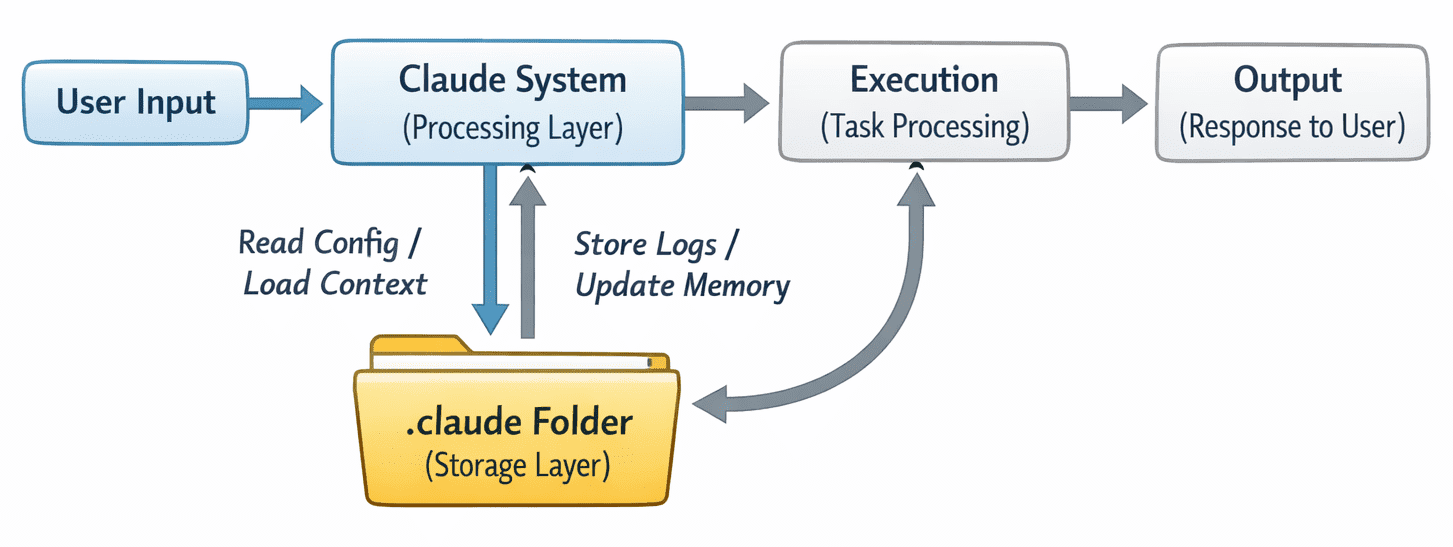
The system interaction with the .claude folder | Image by Author
# Identifying Common Developer Mistakes
Most of the issues around the .claude folder do not come from the tool itself, but from how it is handled. Here are some common mistakes developers make:
- One common mistake is deleting it without understanding the impact. It looks like a temporary folder, so it is easy to remove when cleaning up a project. The problem is that doing this resets everything. Memory, cached context, and sometimes configuration are all lost, which can break workflows or change how the system behaves.
- Another mistake is committing it to version control without checking what is inside. This can lead to sensitive data being pushed to a repository. Logs may contain user inputs or internal outputs, and config files can sometimes expose settings that should stay local. It is an easy oversight that can create real problems later.
- Ignoring logs is another missed opportunity. When something goes wrong, many developers jump straight to changing prompts or code. Meanwhile, the
logs/folder often contains clear signals about what actually happened during execution. Skipping this step makes debugging harder than it needs to be.
# Concluding Thoughts
The .claude folder might look like just another hidden directory, but it plays a central role in how Claude operates inside your project. It is where configuration lives, where context is stored, and where execution leaves its trace. Without it, every interaction would be isolated and stateless. With it, workflows become consistent, repeatable, and more powerful.
Understanding this folder changes how you work with Claude. Instead of guessing what is happening behind the scenes, you start to see how the state is managed, how tasks are executed, and where things can go wrong.
Shittu Olumide is a software engineer and technical writer passionate about leveraging cutting-edge technologies to craft compelling narratives, with a keen eye for detail and a knack for simplifying complex concepts. You can also find Shittu on Twitter.