


5 Useful Python Automation Scripts for Beginners
Learn how to use Python scripts to automate repetitive tasks, organize files, process images, and simplify daily workflows.
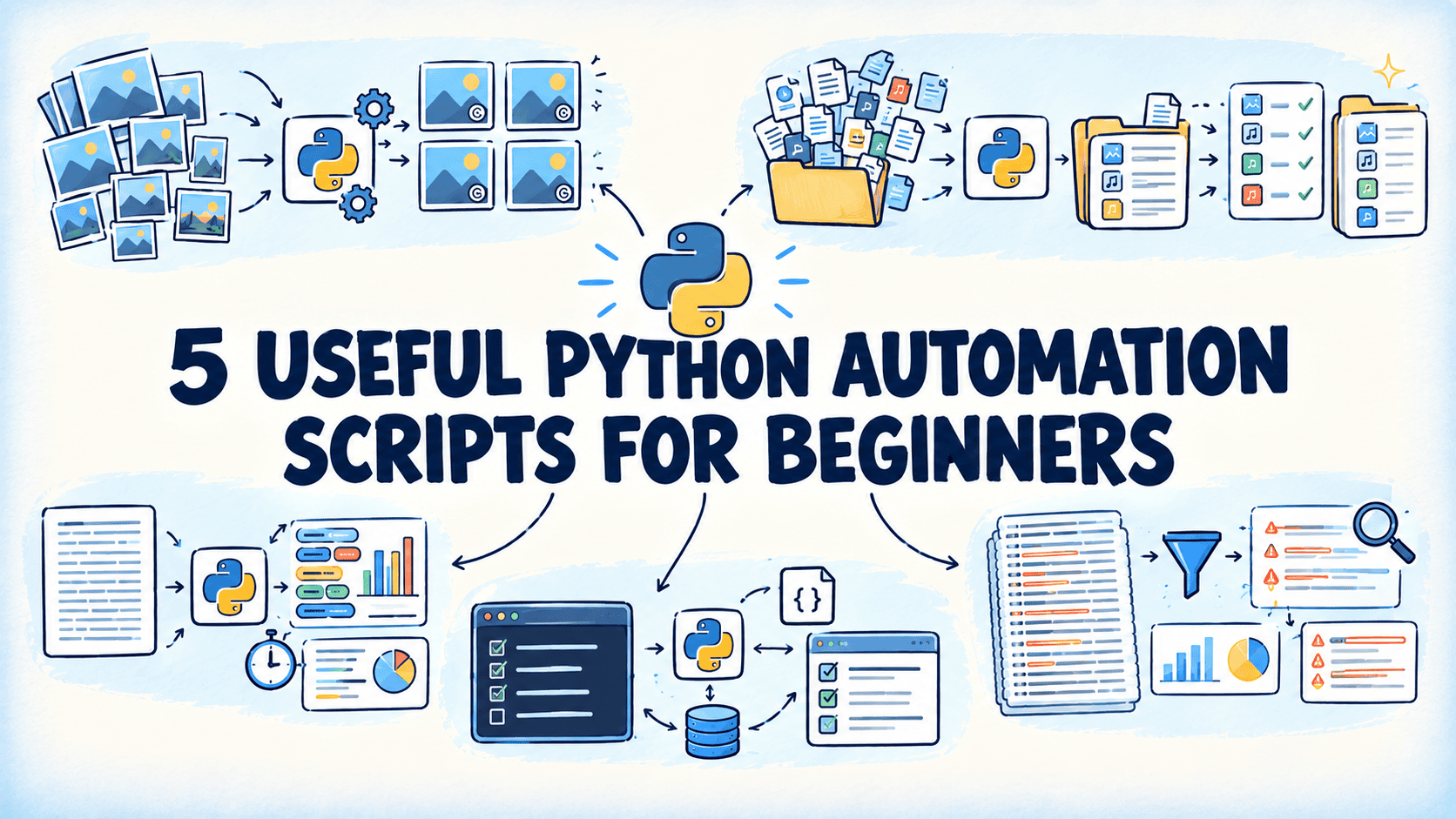
Learning Python becomes useful when you can apply it to real problems. You do not need to build a complex application to see the benefits of programming. Often, a short and simple script that handles a repetitive task is enough to save time and make your work more efficient.
For beginners, the challenge is learning to identify these tasks. Many automation tutorials focus on large projects involving web scraping, complex workflows, or multiple tools. While these projects have their place, starting with smaller, well-defined tasks to automate makes it easier to understand how Python works and how to better use it.
This article covers five practical Python scripts designed to solve everyday problems. Each script focuses on a specific task and is short enough to study without feeling overwhelmed. Together, they cover four useful areas of programming: image processing, file management, text manipulation, and command-line tools.
You can find all the scripts on GitHub.
1. Batch Image Resizer & Watermarker
The Pain Point
Say you've got a folder of fifty photos that all need to be the same size for a website or a submission form, and every one of them should have a small watermark in the corner. Doing this one at a time in an image editor is the kind of task that eats an entire evening for no good reason.
What the Script Does
Resizes every image in a folder to a maximum width or height you specify, keeping the original aspect ratio, and stamps a text watermark in a corner of your choosing. Resized images are written to a separate output folder so your originals are not modified.
How It Works
The script uses the Pillow Python library to open each image, calculate a new size that preserves the aspect ratio, and resize it with a high-quality resampling filter. ImageDraw is then used to render the watermark text onto a semi-transparent layer, which gets composited onto the resized image at whichever corner you pick. Unsupported files are skipped with a warning rather than crashing the whole batch, and a short summary at the end reports how many images were processed.
⏩ Get the image resizer & watermarker script
2. Bulk File Renamer
The Pain Point
A folder of photos named IMG_2044.jpg, IMG_2045.jpg, and so on isn't useful to anyone. Neither is a batch of export files that all need a client name prepended, or a set of downloads that need a typo fixed across all of them. Renaming files one by one in a file browser doesn't scale past a handful of files.
What the Script Does
Renames every file in a folder according to a rule you choose: add a prefix or suffix, renumber everything sequentially, or find-and-replace a piece of text in the filenames. Runs in a dry-run mode by default so you see exactly what would change before anything actually does.
How It Works
The script builds a list of matching files with pathlib, computes the new name for each one according to the selected mode, and prints a before/after preview. Only when you pass --apply does it call Path.rename(). Before renaming, it checks for any naming collisions the operation would create and refuses to proceed if it finds one, so you don't accidentally overwrite a file.
⏩ Get the bulk file renamer script
3. Text File Word Frequency & Readability Analyzer
The Pain Point
You've got a chunk of text — an essay draft, a transcript, an article — and you want a quick read on it: how long is it, what words show up too often, roughly how long will it take to read. Doing this by eye is slow, and the "roughly" part is only a guess.
What the Script Does
Reads a plain text file and reports total word and sentence counts, average sentence length, the most frequently used words with common filler words excluded, and an estimated reading time based on average adult reading speed.
How It Works
The script normalizes the text to lowercase, strips punctuation with a regular expression, and splits it into words and sentences. Word frequency is tallied with collections.Counter, filtered against a small built-in stop-word list so the "top words" list is actually useful. Reading time is estimated by dividing the word count by a configurable words-per-minute rate, set to 200 by default. Everything is printed as a clean summary in the terminal.
⏩ Get the word frequency & readability analyzer script
4. Command-Line To-Do List Manager
The Pain Point
If you're a fan of sticky notes like me, you know they have a habit of falling off or getting lost. Notes apps, on the other hand, can feel like overkill when all you need is a simple running list of three or four things to get done today. And if you're already in a terminal, switching context to open a separate app just to check off a task breaks your flow.
What the Script Does
A small command-line to-do list you interact with through subcommands: add a task, list open tasks, mark one done, or remove one entirely. Tasks persist between runs in a plain JSON file, so your list is exactly where you left it next time you open the terminal.
How It Works
The script uses argparse with subparsers to expose add, list, done, and remove as separate commands, each with its own arguments. Tasks are stored as a simple list of dictionaries (ID, description, done status, created date) and read from or written back to a JSON file on every run. Because the storage format is just JSON, it's easy to inspect or back up the file directly if you ever want to.
⏩ Get the to-do list manager script
5. Log File Analyzer
The Pain Point
Something went wrong, and the answer is somewhere in a log file with ten thousand lines in it. You know roughly what you're looking for — an error level, a keyword, a time range — but piecing together the right grep command under pressure is its own small task.
What the Script Does
Scans a log file and filters its lines by severity level (like ERROR or WARNING), a keyword, or a date range, then prints a summary: total lines matched, a breakdown by severity level, and the most recent matching lines in full.
How It Works
The script reads the log file line by line so it doesn't need to load huge files into memory at once, and uses a regular expression to pull out the timestamp and severity level from each line. Lines need to start with a timestamp and level, like 2026-09-20 14:03:11 ERROR; any others are skipped and counted. Each filter — level, keyword, date range — is applied independently and combined, so you can narrow down to exactly "ERROR lines mentioning 'timeout' from yesterday" in one command. A counts-by-level summary is printed first, followed by the actual matching lines so you can jump straight to the detail.
⏩ Get the log file analyzer script
Wrapping Up
All of these scripts make up a starter set that you can understand and modify. Here's a review:
| Script Name | Category | Purpose | Best Use Case |
|---|---|---|---|
| Image Resizer & Watermarker | Image | Batch resize and watermark images | Preparing photos for a website or submission |
| Bulk File Renamer | File | Rename many files by a pattern | Cleaning up messy filenames in bulk |
| Word Frequency & Readability Analyzer | Text | Summarize word usage and reading time | Reviewing a draft or transcript quickly |
| To-Do List Manager | Command-line | Track tasks from the terminal | Staying organized without leaving the terminal |
| Log File Analyzer | Text or command-line | Filter and summarize log files | Tracking down an issue in a large log |
Happy automating!
Bala Priya is a developer, educator, and technical writer based in India. She writes about programming, data science, machine learning, and AI, with a focus on making complex technical ideas practical and approachable. She creates tutorials, how-to guides, and deep dives that help developers build, solve problems, and understand complex technical concepts. Her technical interests include LLM applications, agentic AI, graph algorithms, computer vision, explainable AI, and ML systems. When she’s not writing or coding, Bala is usually reading classic literature, epic fantasy, or speculative fiction. She also enjoys talking about books, learning new things, and sharing what she learns with the developer community.