


The KDnuggets ComfyUI Crash Course
This crash course will take you from a complete beginner to a confident ComfyUI user, walking you through every essential concept, feature, and practical example you need to master this powerful tool.

Image by Author
ComfyUI has changed how creators and developers approach AI-powered image generation. Unlike traditional interfaces, the node-based architecture of ComfyUI gives you unprecedented control over your creative workflows. This crash course will take you from a complete beginner to a confident user, walking you through every essential concept, feature, and practical example you need to master this powerful tool.

Image by Author
ComfyUI is a free, open-source, node-based interface and the backend for Stable Diffusion and other generative models. Think of it as a visual programming environment where you connect building blocks (called "nodes") to create complex workflows for generating images, videos, 3D models, and audio.
Key advantages over traditional interfaces:
- You have full control to build workflows visually without writing code, with complete control over every parameter.
- You can save, share, and reuse entire workflows with metadata embedded in the generated files.
- There are no hidden charges or subscriptions; it is completely customizable with custom nodes, free, and open source.
- It runs locally on your machine for faster iteration and lower operational costs.
- It has extended functionality, which is nearly endless with custom nodes that can meet your specific needs.
# Choosing Between Local and Cloud-Based Installation
Before exploring ComfyUI in more detail, you must decide whether to run it locally or use a cloud-based version.
| Local Installation | Cloud-Based Installation |
|---|---|
| Works offline once installed | Requires a constant internet connection |
| No subscription fees | May involve subscription costs |
| Complete data privacy and control | Less control over your data |
| Requires powerful hardware (especially a good NVIDIA GPU) | No powerful hardware required |
| Manual installation and updates required | Automatic updates |
| Limited by your computer's processing power | Potential speed limitations during peak usage |
If you are just starting, it is recommended to begin with a cloud-based solution to learn the interface and concepts. As you develop your skills, consider transitioning to a local installation for greater control and lower long-term costs.
# Understanding the Core Architecture
Before working with nodes, it is essential to understand the theoretical foundation of how ComfyUI operates. Think of it as a multiverse between two universes: the red, green, blue (RGB) universe (what we see) and the latent space universe (where computation happens).
// The Two Universes
The RGB universe is our observable world. It contains regular images and data that we can see and understand with our eyes. The latent space (AI universe) is where the "magic" happens. It is a mathematical representation that models can understand and manipulate. It is chaotic, filled with noise, and contains the abstract mathematical structure that drives image generation.
// Using the Variational Autoencoder
The variational autoencoder (VAE) acts as a portal between these universes.
- Encoding (RGB — Latent) takes a visible image and converts it into the abstract latent representation.
- Decoding (Latent — RGB) takes the abstract latent representation and converts it back to an image we can see.
This concept is important because many nodes operate within a single universe, and understanding it will help you connect the right nodes together.
// Defining Nodes
Nodes are the fundamental building blocks of ComfyUI. Each node is a self-contained function that performs a specific task. Nodes have:
- Inputs (left side): Where data flows in
- Outputs (right side): Where processed data flows out
- Parameters: Settings you adjust to control the node's behavior
// Identifying Color-Coded Data Types
ComfyUI uses a color system to indicate what type of data flows between nodes:
| Color | Data Type | Example |
|---|---|---|
| Blue | RGB Images | Regular visible images |
| Pink | Latent Images | Images in latent representation |
| Yellow | CLIP | Text converted to machine language |
| Red | VAE | Model that converts between universes |
| Orange | Conditioning | Prompts and control instructions |
| Green | Text | Simple text strings (prompts, file paths) |
| Purple | Models | Checkpoints and model weights |
| Teal/Turquoise | ControlNets | Control data for guiding generation |
Understanding these colors is very important. They tell you instantly whether nodes can connect to each other.
// Exploring Important Node Types
Loader nodes import models and data into your workflow:
CheckPointLoader: Loads a model (typically containing the model weights, Contrastive Language-Image Pre-training (CLIP), and VAE in one file).Load Diffusion Model: Loads model components separately (for newer models like Flux that do not bundle components).VAE Loader: Loads the VAE decoder separately.CLIP Loader: Loads the text encoder separately.
Processing nodes transform data:
CLIP Text Encodeconverts text prompts into machine language (conditioning).KSampleris the core image generation engine.VAE Decodeconverts latent images back to RGB.
Utility nodes support workflow management:
- Primitive Node: Allows you to input values manually.
- Reroute Node: Cleans up workflow visualization by redirecting connections.
- Load Image: Imports images into your workflow.
- Save Image: Exports generated images.
# Understanding the KSampler Node
The KSampler is arguably the most important node in ComfyUI. It is the "robot builder" that actually generates your images. Understanding its parameters is crucial for creating quality images.
// Reviewing KSampler Parameters
Seed (Default: 0)
The seed is the initial random state that determines which random pixels are placed at the start of generation. Think of it as your starting point for randomization.
- Fixed Seed: Using the same seed with the same settings will always produce the same image.
- Randomized Seed: Each generation gets a new random seed, producing different images.
- Value Range: 0 to 18,446,744,073,709,551,615.
Steps (Default: 20)
Steps define the number of denoising iterations performed. Each step progressively refines the image from pure noise toward your desired output.
- Low Steps (10-15): Faster generation, less refined results.
- Medium Steps (20-30): Good balance between quality and speed.
- High Steps (50+): Better quality but significantly slower.
CFG Scale (Default: 8.0, Range: 0.0-100.0)
The classifier-free guidance (CFG) scale controls how strictly the AI follows your prompt.
Analogy — Imagine giving a builder a blueprint:
- Low CFG (3-5): The builder glances at the blueprint then does their own thing — creative but may ignore instructions.
- High CFG (12+): The builder obsessively follows every detail of the blueprint — accurate but may look stiff or over-processed.
- Balanced CFG (7-8 for Stable Diffusion, 1-2 for Flux): The builder mostly follows the blueprint while adding natural variation.
Sampler Name
The sampler is the algorithm used for the denoising process. Common samplers include Euler, DPM++ 2M, and UniPC.
Scheduler
Controls how noise is scheduled across the denoising steps. Schedulers determine the noise reduction curve.
- Normal: Standard noise scheduling.
- Karras: Often provides better results at lower step counts.
Denoise (Default: 1.0, Range: 0.0-1.0)
This is one of your most important controls for image-to-image workflows. Denoise determines what percentage of the input image to replace with new content:
- 0.0: Do not change anything — output will be identical to input
- 0.5: Keep 50% of the original image, regenerate 50% as new
- 1.0: Completely regenerate — ignore the input image and start from pure noise
# Example: Generating a Character Portrait
Prompt: "A cyberpunk android with neon blue eyes, detailed mechanical parts, dramatic lighting."
Settings:
- Model: Flux
- Steps: 20
- CFG: 2.0
- Sampler: Default
- Resolution: 1024x1024
- Seed: Randomize
Negative prompt: "low quality, blurry, oversaturated, unrealistic."
// Exploring Image-to-Image Workflows
Image-to-image workflows build on the text-to-image foundation, adding an input image to guide the generation process.
Scenario: You have a photograph of a landscape and want it in an oil painting style.
- Load your landscape image
- Positive Prompt: "oil painting, impressionist style, vibrant colors, brush strokes"
- Denoise: 0.7
// Conducting Pose-Guided Character Generation
Scenario: You generated a character you love but want a different pose.
- Load your original character image
- Positive Prompt: "Same character description, standing pose, arms at side"
- Denoise: 0.3
# Installing and Setting Up ComfyUI
Cloud-Based (Easiest for Beginners)
Visit RunComfy.com and click on launch Comfy Cloud at the top right-hand side. Alternatively, you can simply sign up in your browser.

Image by Author
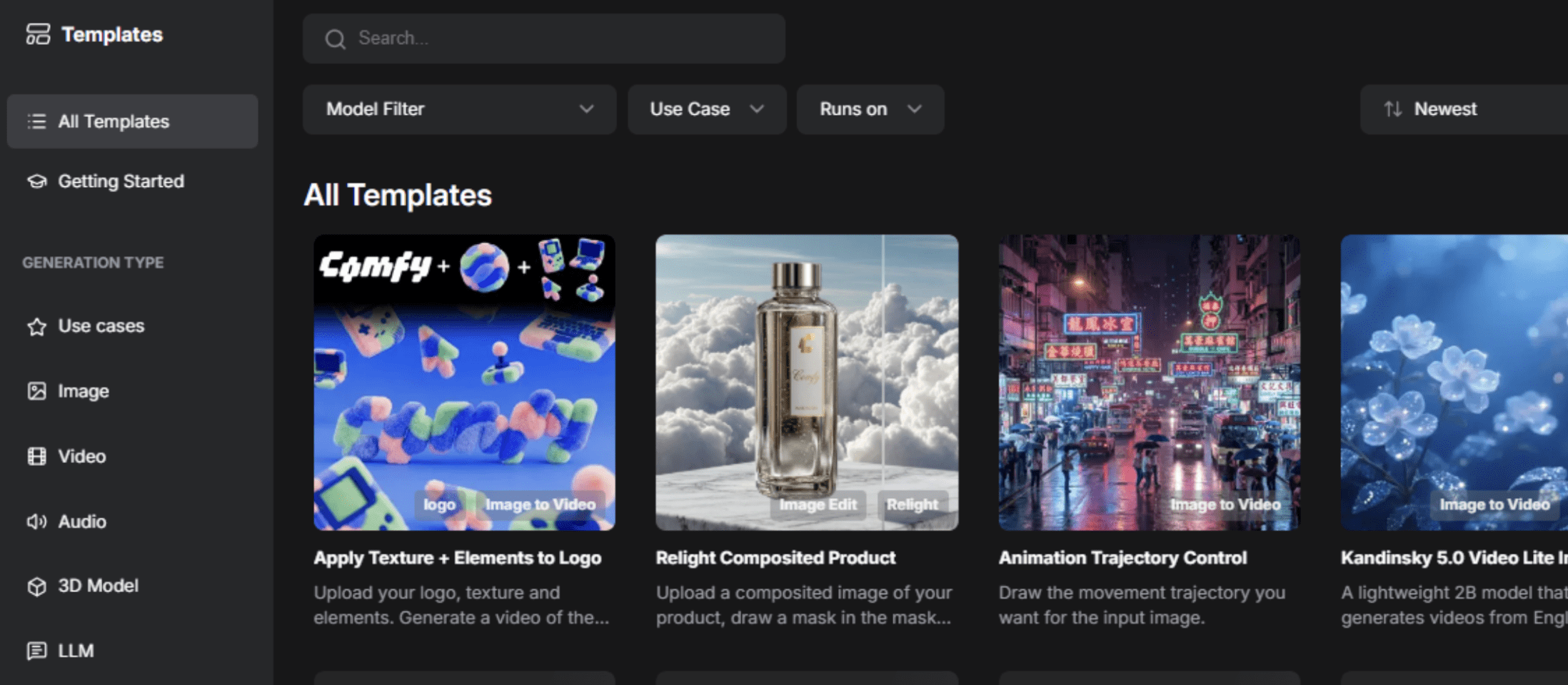
Image by Author
// Using Windows Portable
- Before you download, you must have a hardware setup including an NVIDIA GPU with CUDA support or macOS (Apple Silicon).
- Download the portable Windows build from the ComfyUI GitHub releases page.
- Extract to your desired location.
- Run
run_nvidia_gpu.bat(if you have an NVIDIA GPU) orrun_cpu.bat. - Open your browser to http://localhost:8188.
// Performing Manual Installation
- Install Python: Download version 3.12 or 3.13.
- Clone Repository:
git clone https://github.com/comfyanonymous/ComfyUI.git - Install PyTorch: Follow platform-specific instructions for your GPU.
- Install Dependencies:
pip install -r requirements.txt - Add Models: Place model checkpoints in
models/checkpoints. - Run:
python main.py
# Working With Different AI Models
ComfyUI supports numerous state-of-the-art models. Here are the current top models:
| Flux (Recommended for Realism) | Stable Diffusion 3.5 | Older Models (SD 1.5, SDXL) |
|---|---|---|
| Excellent for photorealistic images | Well-balanced quality and speed | Extensively fine-tuned by the community |
| Fast generation | Supports various styles | Massive low-rank adaptation (LoRA) ecosystem |
| CFG: 1-3 range | CFG: 4-7 range | Still excellent for specific workflows |
# Advancing Workflows With Low-Rank Adaptations
Low-rank adaptations (LoRAs) are small adapter files that fine-tune models for specific styles, subjects, or aesthetics without modifying the base model. Common uses include character consistency, art styles, and custom concepts. To use one, add a "Load LoRA" node, select your file, and connect it to your workflow.
// Guiding Image Generation with ControlNets
ControlNets provide spatial control over generation, forcing the model to respect pose, edge maps, or depth:
- Force specific poses from reference images
- Maintain object structure while changing style
- Guide composition based on edge maps
- Respect depth information
// Performing Selective Image Editing with Inpainting
Inpainting allows you to regenerate only specific regions of an image while preserving the rest intact.
Workflow: Load image — Mask painting — Inpainting KSampler — Result
// Increasing Resolution with Upscaling
Use upscale nodes after generation to increase resolution without regenerating the entire image. Popular upscalers include RealESRGAN and SwinIR.
# Conclusion
ComfyUI represents a very important shift in content creation. Its node-based architecture gives you power previously reserved for software engineers while remaining accessible to beginners. The learning curve is real, but every concept you learn opens new creative possibilities.
Begin by creating a simple text-to-image workflow, generating some images, and adjusting parameters. Within weeks, you will be creating sophisticated workflows. Within months, you will be pushing the boundaries of what is possible in the generative space.
Shittu Olumide is a software engineer and technical writer passionate about leveraging cutting-edge technologies to craft compelling narratives, with a keen eye for detail and a knack for simplifying complex concepts. You can also find Shittu on Twitter.